Preferred and Include settings
The process of building design involves using different unit components and materials. However, not all of these are necessary for use with the blueprint gizmo. By adjusting the Preferred and Include options, you can choose how each part, material, and child element participate in the building creation process.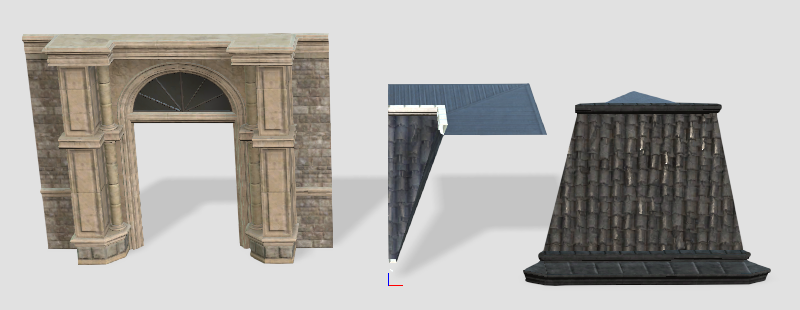
Preferred: This option determines whether the selected components or materials will be included in the possible building permutations created by the blueprint gizmo.
Include: This option determines whether the chosen components and materials can be accessed and used when creating buildings using BuildingGen interface panels such as New Building, Rebuilder, Rebuild Level, and Add Level.
Unit parts
Unit parts with Preferred enabled will serve as default building componentsduring the construction process. Additionally, in the Custom Style panel, these parts will be activated or deactivated accordingly.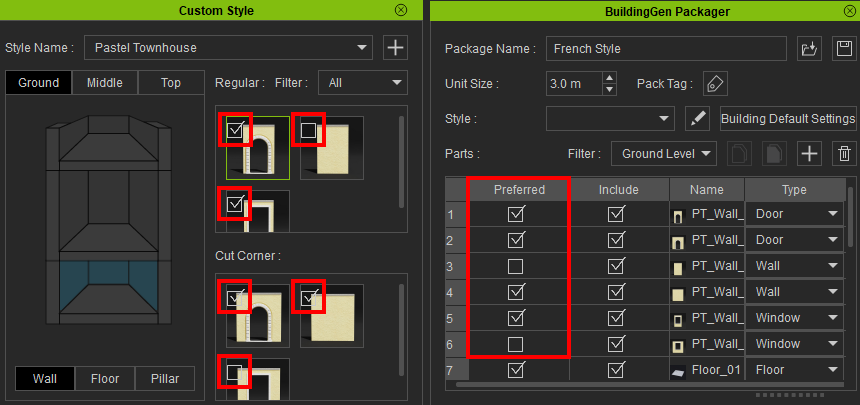
The settings in the Include column will determine if the unit parts will be visible for selection in the Custom Style panel. The deactivated unit parts can be found in their respective folder in Content Manager > Custom > Props > Props.
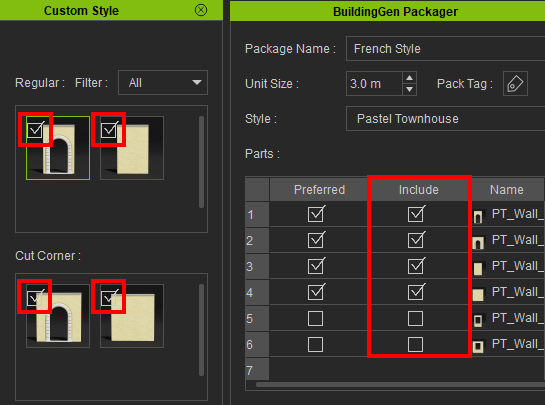
- Unchecking unit parts in the Include column will also uncheck them in the Preferred column. This action will remove the parts from the Regular and Cut Corner options in the Custom Style panel.
- It's recommended that users uncheck unit parts that overlap multiple units or other components in the Include column as they may not be suitable for the blueprint.
Materials
In the Materials section, materials marked as Preferred will act as the default material for the selected unit part. Moreover, in the Custom Style panel, these materials will be activated or deactivated accordingly.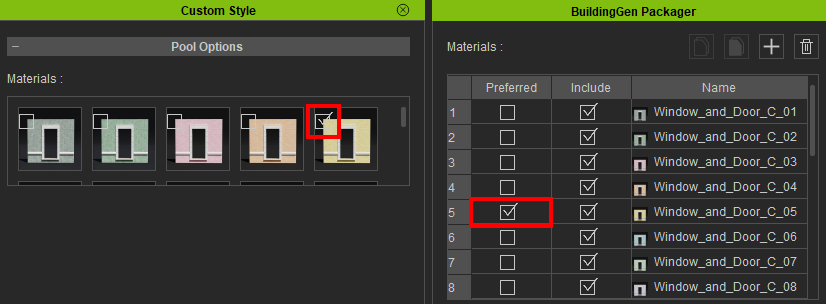
The activation settings for materials in the Include column determine their visibility in the Materials section of the Custom Style panel.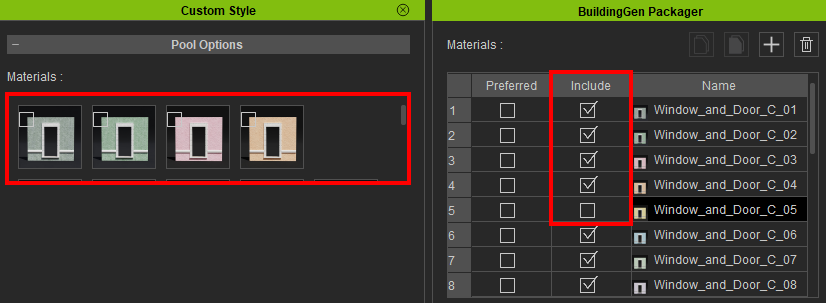
Child elements
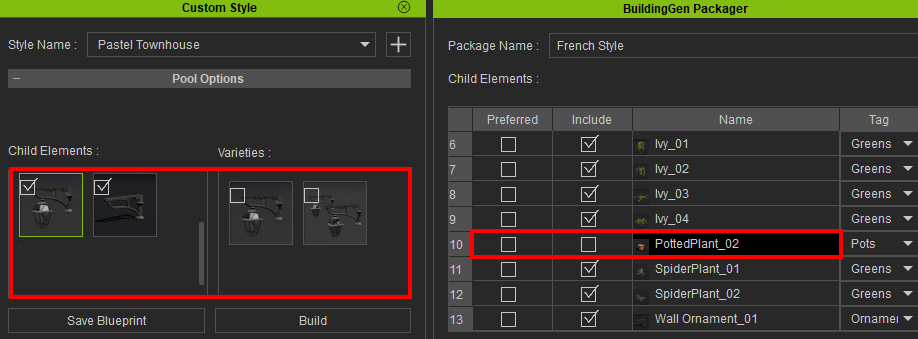
Enabled components in the Preferred column will also be enabled in Custom Style > Pool Options > Varieties, making them available for the blueprint gizmo.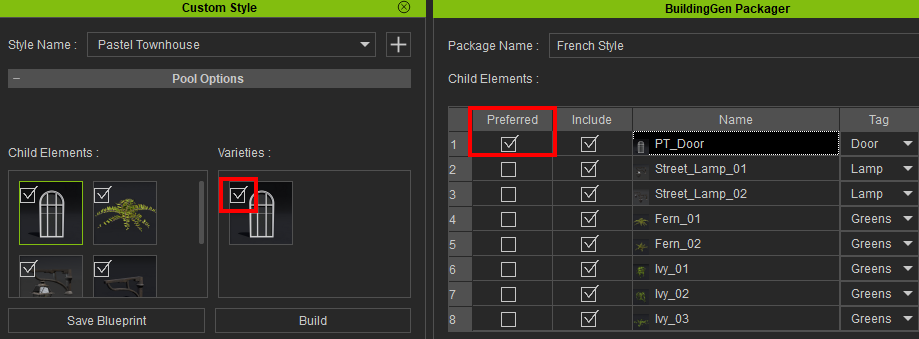
Logically, disabled components in the Preferred column will also be disabled in Custom Style > Pool Options > Varieties.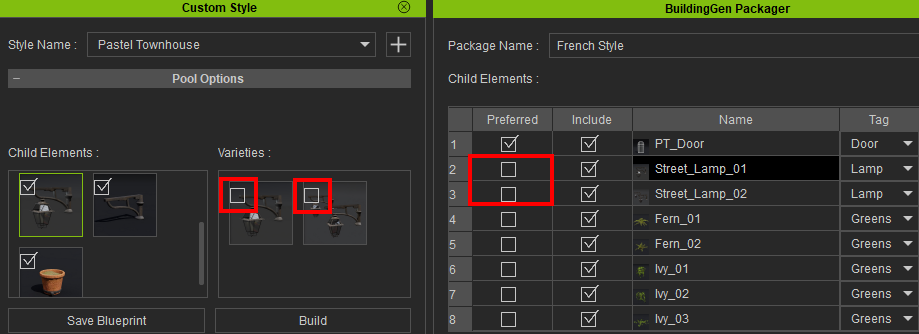
The activation settings for components in the Include column determine their visibility in both the Child Elements and Varieties section of the Custom Style panel.